Help › Getting started
Write and edit a campaign
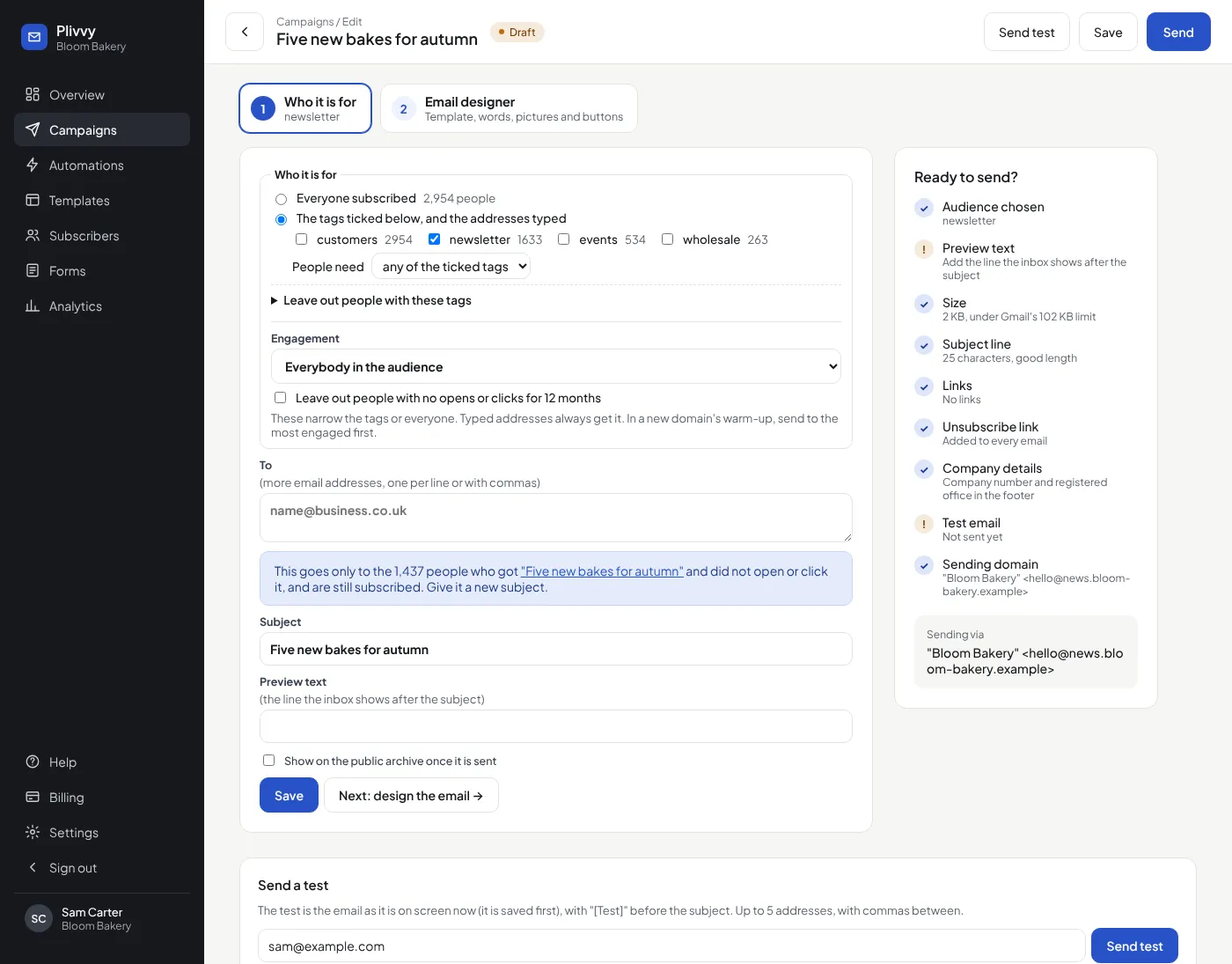
Open Campaigns → New campaign. A campaign has two steps. The tabs at the top go from one to the other, and Save keeps both.
- Who it is for: the tags or everyone, the addresses typed, the subject and the preview text. Press Next: design the email.
- Email designer: start from a template, then click into the email and type. The heading, the HTML code and Markdown are at the side.
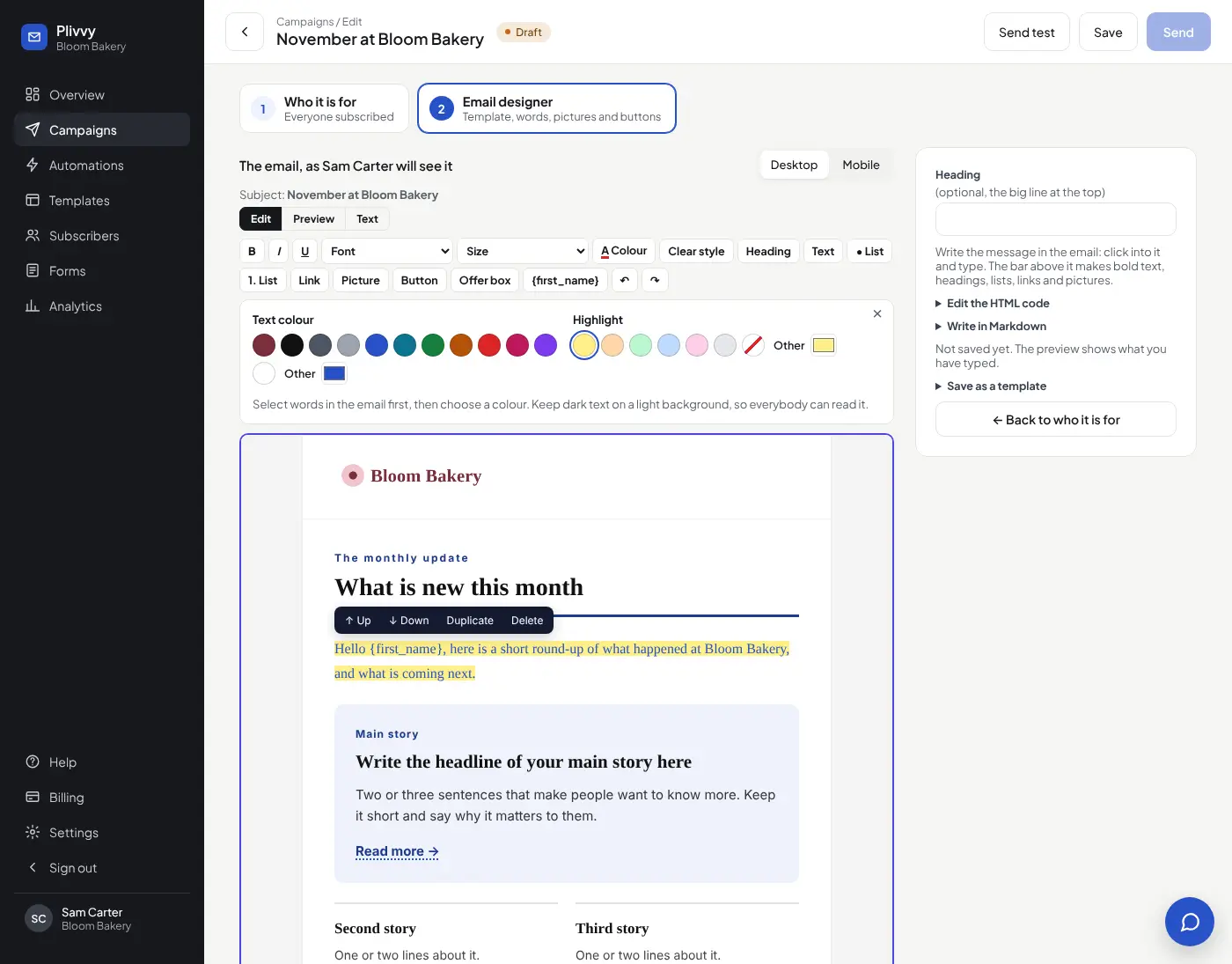
The bar above the email
- B, I, U: bold, italic, underline.
- Font and Size: select words, then choose a font (Arial, Helvetica, Verdana, Tahoma, Trebuchet MS, Georgia, Times New Roman or Courier New) or a size (13 to 32 pixels). Every mail app has these fonts.
- Colour: opens a box. Select words, then press a colour for the text or for a highlight behind it. The first text colour is your own colour from Settings → Your logo and colours; Other chooses any colour. Keep dark text on a light background, so everybody can read it.
- Clear style: removes the font, size, colour and bold from the selected words.
- Heading and Text: change a line's size.
- Link: opens a box. Select words in the email first, and they become the link; with nothing selected, type the words in the box. A link starts with https://, or mailto: for an email address. In the editor, every link has a blue dotted line under it (the email itself keeps its own look). Click in a link and press Edit link on the small bar, or press Link, to change it or remove it.
- Picture: opens a box. Drag a picture into it, press Choose a file, or paste a picture's link (https://). PNG, JPEG, GIF or WebP, up to 5 MB. The picture goes after the line the cursor was in; in a template's grey "photo here" box, it takes the box's place.
- Button: opens a box. Type the words and the link (https://), or choose a thank-you page. The button goes after the line the cursor is in. See Buttons that do something below.
- Offer box: a grey box for an offer.
- {first_name}: each person's first name. With no name, it says "there".
Move a block
Click a paragraph, heading, list, picture, offer box or button. A small bar shows above it: Up and Down move it, Duplicate copies it, Delete removes it. On a button, Change button opens the button box again. Numbered boxes, as in the Link roundup and How-to templates, count 1, 2, 3 again by themselves after each of these.
Buttons that do something
In the button box, When a person clicks it can add a tag, remove a tag or start an automation. For example, a button "Yes, I'm interested" adds the tag interested; a tag can also start the automations that wait for it. Choose A thank-you page when the button needs no website: the person sees "Thank you".
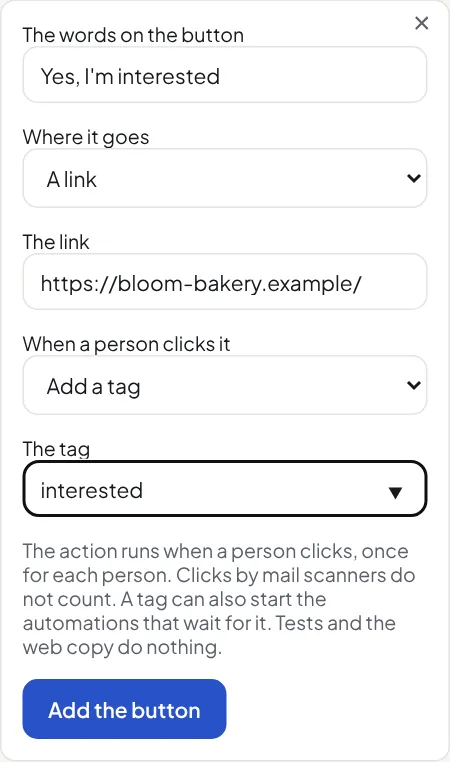
- It runs once for each person, when they click. Clicks by mail scanners do not count.
- It works in sent emails only: tests, the preview and the public archive do nothing.
- An automation must be switched on, and the person must be subscribed.
- The button bar shows Change button ⚡ on a button with an action. The campaign report shows how many people each action ran for.
- Click actions are on the Pro plan, and need open and click tracking on (Settings).
Slash commands
Type / at the start of a line (or after a space) for a menu: heading, small heading, text, lists, quote, line, picture, button, offer box and first name. Type a word after the / to find one, use the arrow keys, and press Enter. Escape closes the menu.
You can also write {company} or {website}. To edit the HTML, open Edit the HTML code at the side of the email. To write in Markdown, open Write in Markdown, paste it and press Use this Markdown: it replaces the message.
Preview text
The Preview text is the line the inbox shows after the subject. Write one short sentence that makes people open the email.
Test two subjects
Under the subject, open A/B test the subject and write a second subject. The better one goes to everybody else by itself. This is on the Pro plan. See A/B test the subject.
Ready to send?
The list at the side of step 1 checks the preview text, the size, the subject length, the links, the unsubscribe link, your company details, the test and your sending domain. Gmail cuts an email over 102 KB and hides the unsubscribe link, so a bigger email cannot be sent.
Send and Schedule use the saved campaign. After a change, the Send box says Save this campaign first, and the Send, Send now and Schedule buttons are grey until you press Save. Send now and Schedule ask you first in a box that shows the subject, how many people get it (with "Only the first", that number) and when. The bar at the top of the page, with Send test, Save and Send, stays on screen while you scroll. A scheduled campaign goes to the people in the audience at the scheduled time.