Help › Contacts
Confirmed opt-in (double opt-in)
It is off unless you turn it on in Settings → Your business → Confirmed opt-in. It needs a verified sending domain (or our shared domain) first.
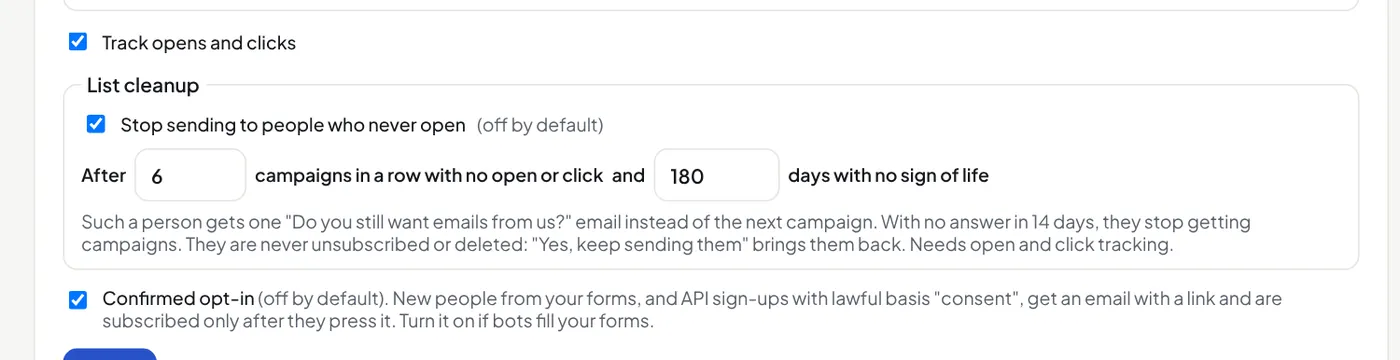
- A new person from one of your forms gets one email with a button. Until they press it, they are Waiting to confirm: they get no campaign or automation and do not count towards your plan.
- The page after the form says "Check your inbox", with a button to Gmail, Outlook, Yahoo, iCloud or Proton when the address is there.
- Through the API, only people sent with lawful basis
consent(sign-ups) are asked. Customer records withsoft_opt_inorbusinessare not. - The link works for 30 days. A second sign-up an hour or more later sends it again.
Turn it on if bots fill your forms with addresses that did not ask.
Your own confirmation email
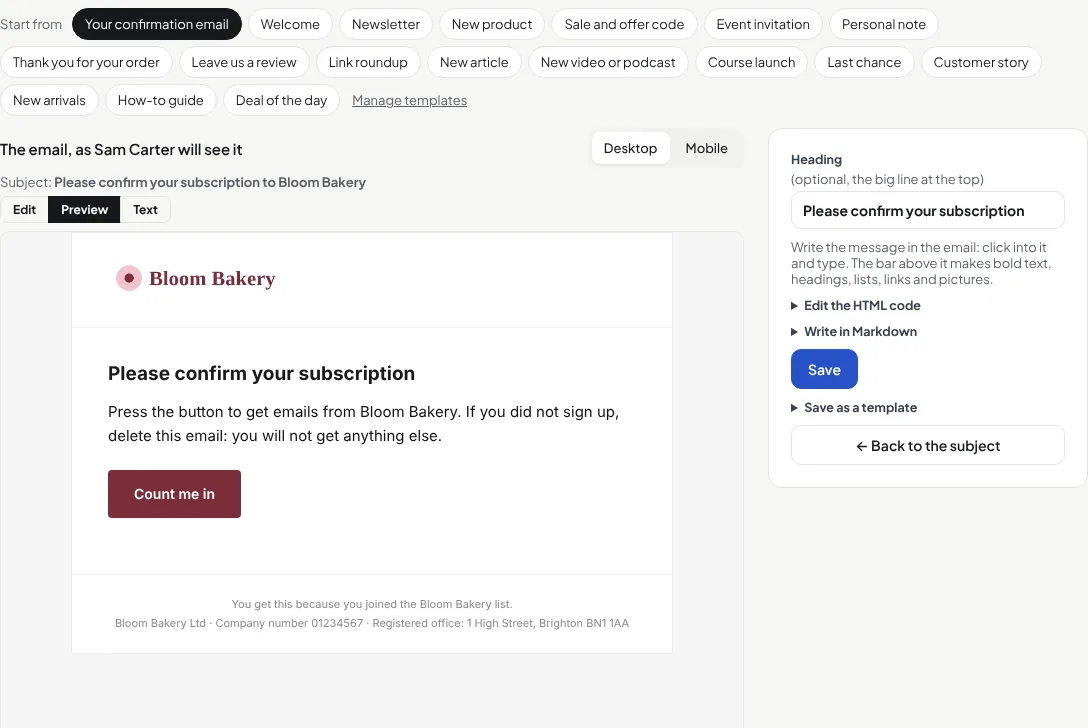
- In Settings → Your business, press Edit the confirmation email, under Confirmed opt-in.
- Change the subject and the button words in step 1.
- In step 2, change the words, or press a template under Start from. Your own saved templates are there too.
- Press Save, then Send test. The test's button opens a page that says it was a test.
- Type
{confirm_button}where the button goes, and{confirm_link}for the link as text, for example "Button not working? Open {confirm_link}". - With neither, the button goes at the end: every confirmation email has its link.
- The button has your button colour from Settings → Your logo and colours. Each person gets their own link.
- The email has no unsubscribe link: the person is not on your list until they press the button.
Did this answer your question? If not, contact us or use the chat button.