Help › Contacts
One contact's page
On Subscribers, press a person's email address.
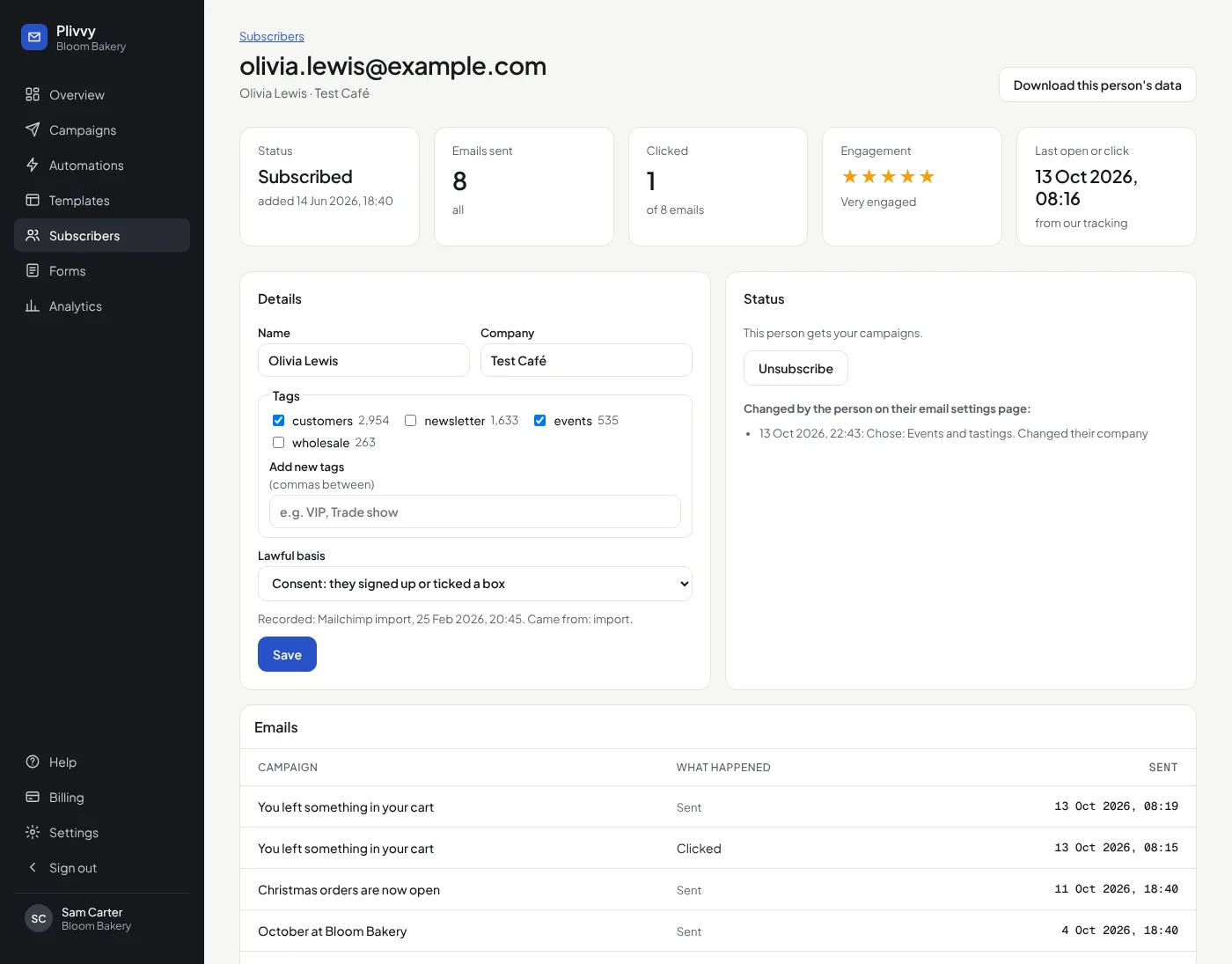
- Details: change the name, company and lawful basis. A new lawful basis records who set it and when.
- Tags: tick or untick the tags the person has. Type new ones in Add new tags, with commas between. Press Save.
- Status: unsubscribe the person, or subscribe them again when they ask you to. A bounce or a spam complaint cannot be cleared.
- Emails: each campaign they got, and whether they opened, clicked, bounced, marked it as spam or unsubscribed. Press a campaign to see its report.
- Pages seen on your website, when your site has the tracking script.
- Engagement: 1 to 5 stars, from the last open or click (see The Overview page).
- Download this person's data: everything above as a file, for a person who asks to see their data.
- Delete this person (owners and admins): for a person who asks to be deleted. See GDPR and consent.
On the Subscribers list
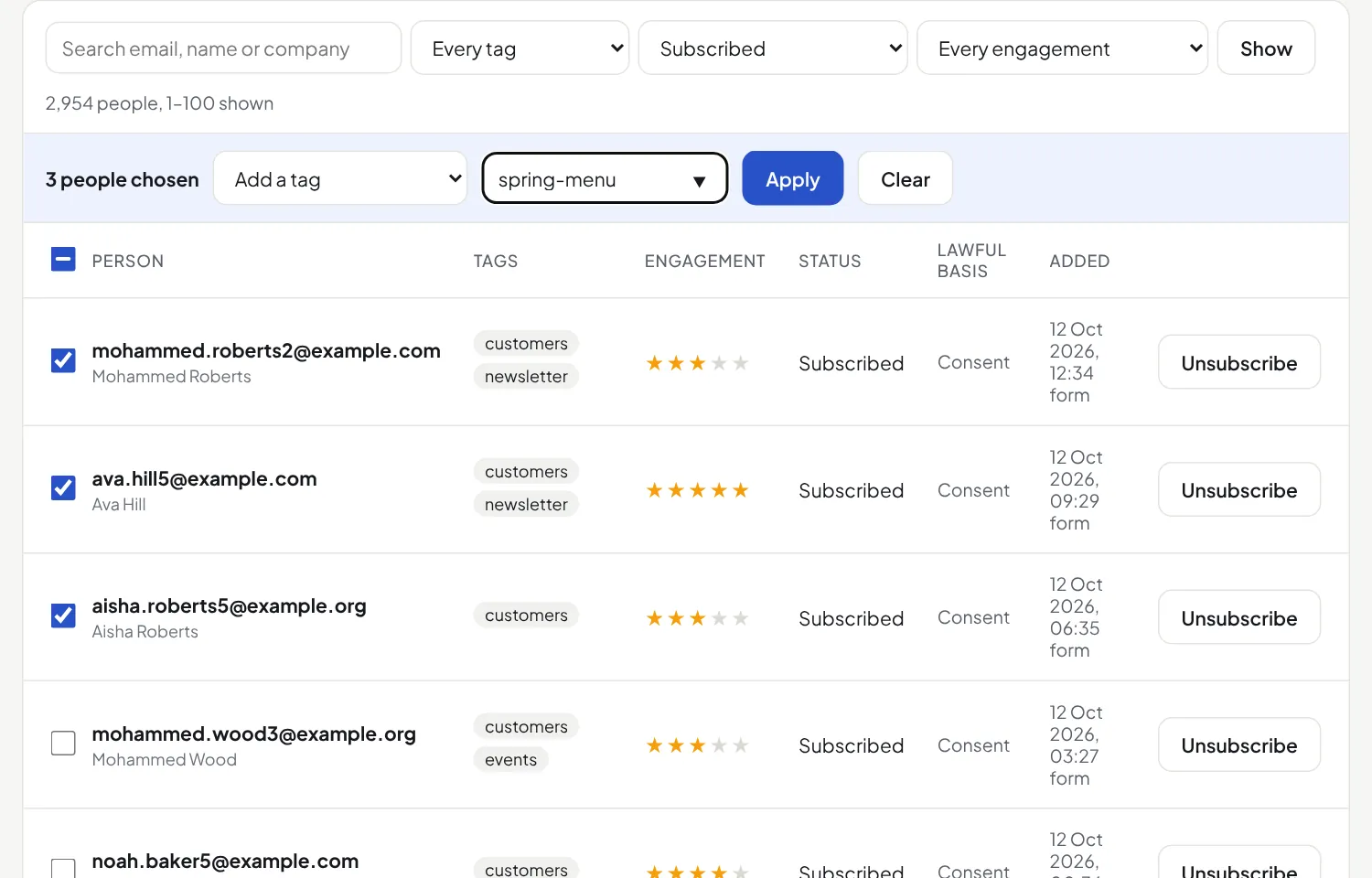
Each subscribed person shows their stars. Choose a score in the filter to see only those people, for example 1 star before you send a "we miss you" email, or 5 stars for a first send from a new domain.
Change many people at once
- Use the filter to show the people you want, for example one tag or one status. Press Show.
- Tick the people. The box at the top of the list ticks everybody on the page.
- To choose everybody in the filter, not only this page, press Choose all … that match.
- Choose Add a tag, Remove a tag or Add to an automation. Type or choose the tag, or choose the automation.
- Press Apply, then OK.
- A tag you add can start an automation that waits for that tag.
- Add to an automation: the automation must be switched on. Only people who are subscribed and have a lawful basis go in. Each person goes through an automation once, so people who were in it before are left out. They start at its first step.
- The message after Apply says how many people changed. Each change is in the activity list on Overview.
Did this answer your question? If not, contact us or use the chat button.