Help › Contacts
Import contacts from a CSV file
Open Subscribers → Import contacts and choose the file under Or upload a CSV file. Files up to 50 MB work; the file is read in your browser.
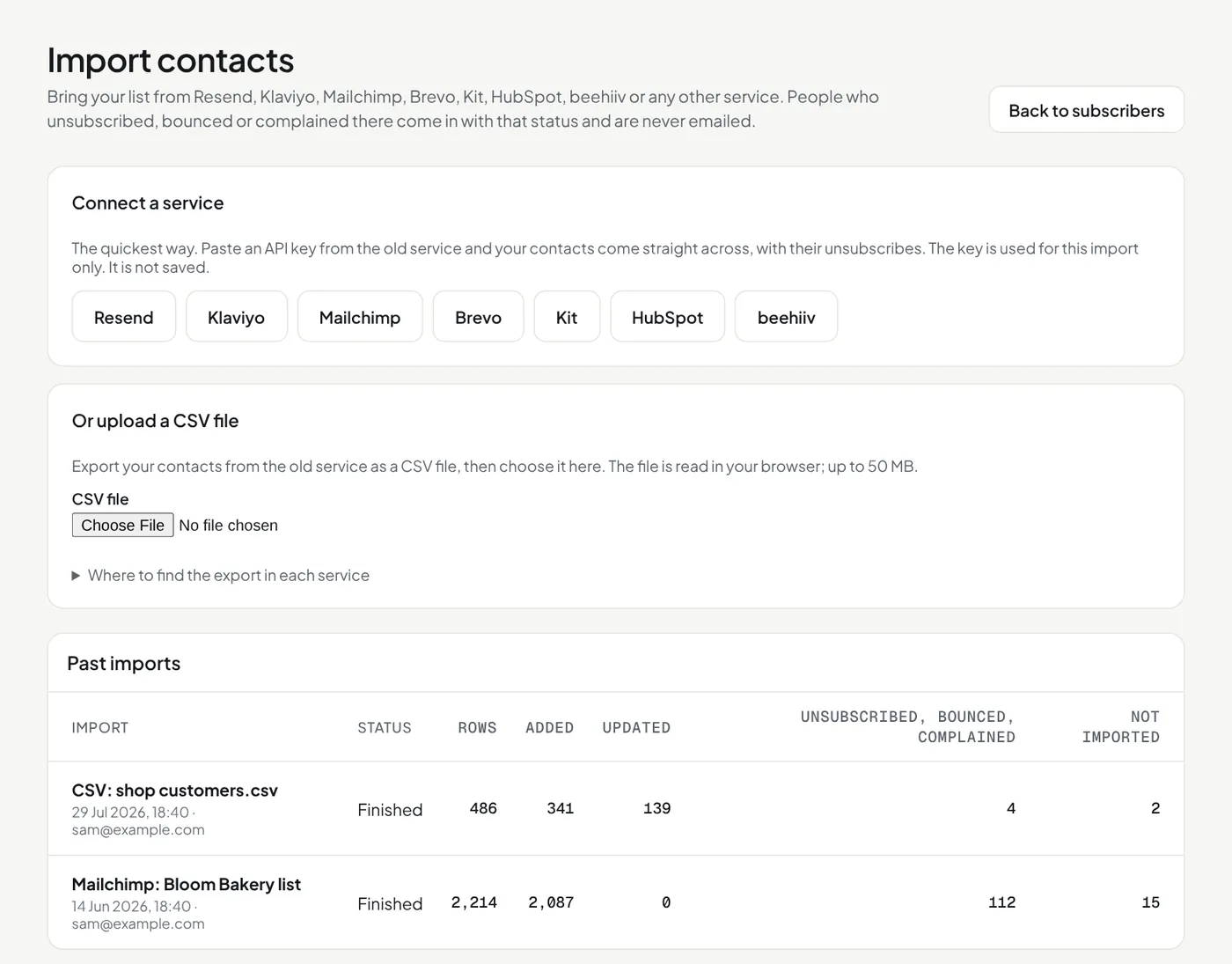
- Check the columns. The app finds email, name, company, tags and status by their names.
- Choose the lawful basis for the people in the file (see Lawful basis).
- Add tags for everyone if you like, then press Check the lists and tags. The app reads the whole file (nothing is saved yet) and shows each list or tag in it with its number of people. Change the tag each one becomes, or empty the box for no tag. Then press Import. Keep the page open until it says finished.
What happens to unsubscribes
People who unsubscribed, bounced or complained in the old service come in with that status and are never emailed. People who never subscribed, or did not confirm, are not imported. An import never subscribes somebody again. An address you deleted with Never add this address again is skipped.
Where to find the export
| Mailchimp | Audience → All contacts → Export audience. Unzip it and import each file. |
| Klaviyo | Lists & segments → the list → Manage list → Export list to CSV. Tick Email Marketing Consent. |
| Kit | Export one status at a time and choose its status when you import. |
| HubSpot | Contacts → Export, with "Unsubscribed from all email". |
Did this answer your question? If not, contact us or use the chat button.