Help › Sending
Email new blog posts (RSS)
This is on the Pro plan. You can set it up and check it on any plan; it switches on after an upgrade.
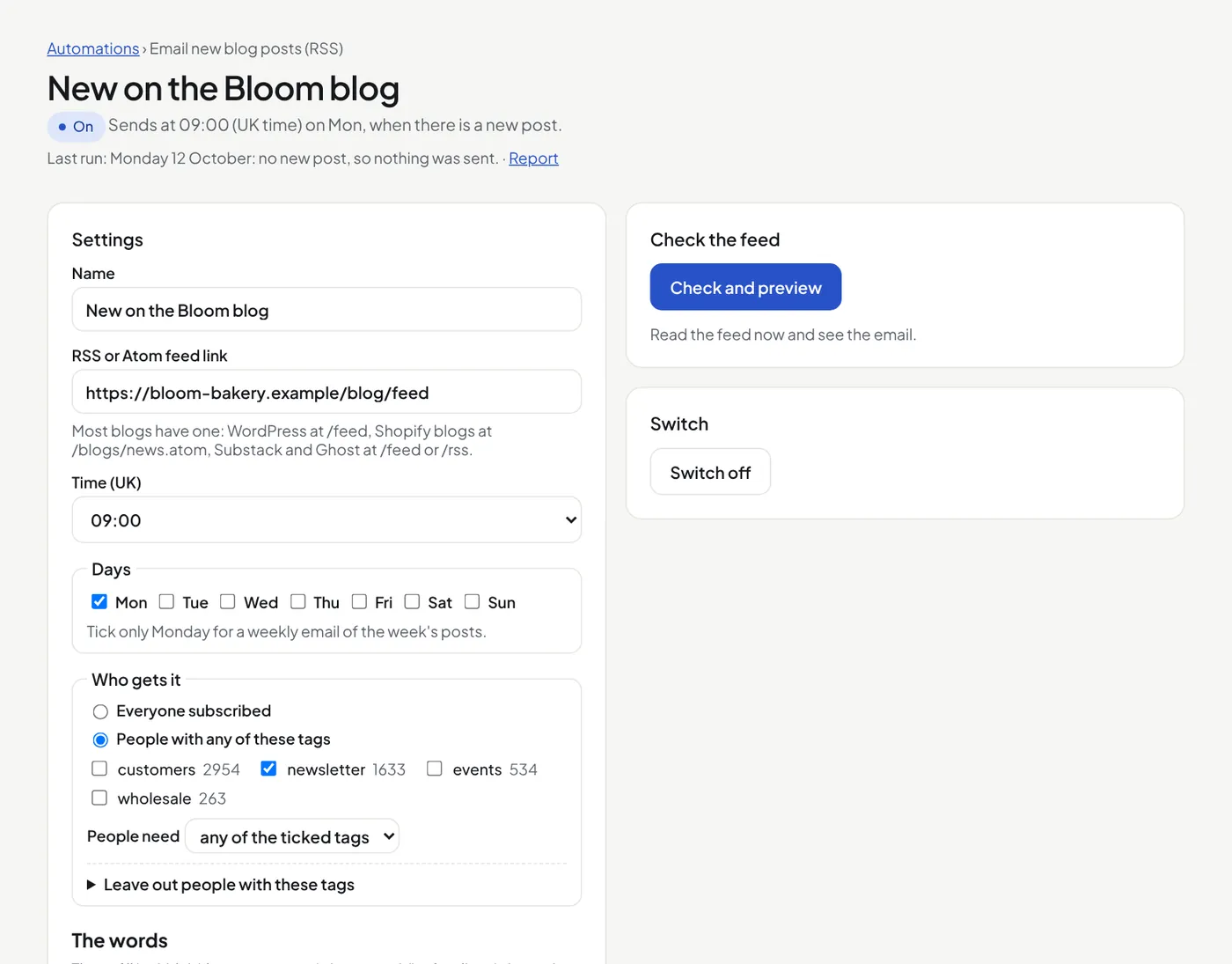
- Open Automations. Under Email new blog posts (RSS), give it a name and press Make an RSS email. It starts switched off.
- Paste your blog's RSS or Atom feed link. Most blogs have one: WordPress at
/feed, Shopify blogs at/blogs/news.atom, Substack and Ghost at/feedor/rss. - Choose the time (UK) and the days. Tick only Monday for a weekly email of the week's posts.
- Choose who gets it, and the words. Press Save.
- Press Check and preview, then Send me this as a test.
- Press Switch on.
- Only posts published after you switch it on are sent. Nobody gets your old posts.
- At the time, on a ticked day, the posts published since the last email go out in one email (at most 10): each with its picture, title, first lines and a link. No new post: nothing is sent.
- Words that fill in: {title} (the newest post), {summary} (its first lines), {count} (how many posts), {business} and {first_name}.
- Each email is a normal campaign: it shows in Campaigns with its report, with the same checks as a campaign you send. If a check fails, nothing is sent, you get an alert, and the posts go next time.
- No HTML from your feed goes in the email: the titles and first lines are made plain text.
Did this answer your question? If not, contact us or use the chat button.