Help › Sending
Add your sending domain
Your own domain starts on the Starter plan. On the Free plan, campaigns go from our shared domain, even when you added your own.
On a paid plan it is required. Nothing sends until your domain is verified: the send page says so, and a campaign that was sending pauses with the reason. This protects the delivery of every Mailfly customer: a large send from our shared domain could put all of them in spam.
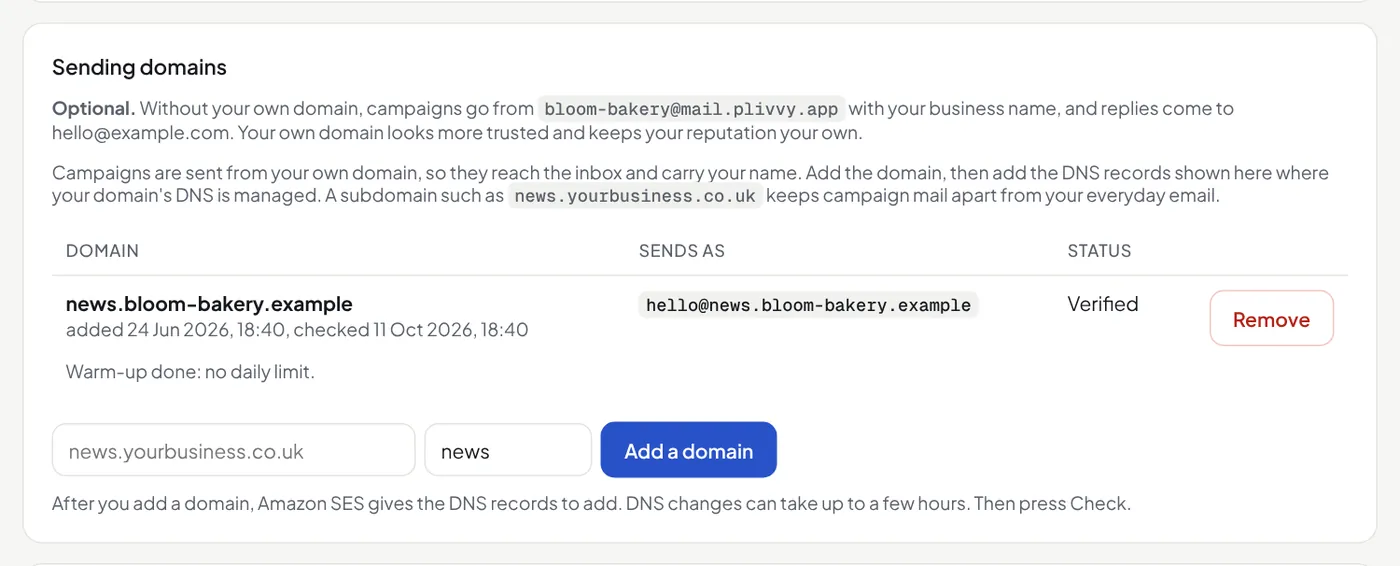
This is optional. Without your own domain, campaigns go from our shared sending domain, with your business name as the sender and replies going to you. Your own domain looks more trusted and keeps your sending reputation your own.
Campaigns go from your own domain, so they carry your name and reach the inbox. Use a subdomain such as news.yourbusiness.com, so campaign mail stays apart from your everyday email.
- Open Settings → Sending domains, type the domain and the part before the @ (for example
offers), and press Add a domain. - The page shows the DNS records to add, with what each one is for: DKIM records (they prove the email is from you), records for the bounce address, and a DMARC TXT record. Add each one where your domain's DNS is managed. On Cloudflare, set each to DNS only.
- On Cloudflare, the quick way: press Download for Cloudflare under the records. In Cloudflare, open your domain, then DNS → Records → Import and Export → Import. Choose the file and leave Proxy imported DNS records off. The file has every record except DMARC, because your domain may have one already: add DMARC by hand if it has none.
- Press Check. DNS changes can take a few hours. The app also checks every 30 minutes.